Educational games for the classroom, on every student’s screen
For preschool, pre-K and kindergarten. You choose what they play and see what each one is doing. Kids join with a code: no accounts, no ads.
Free. No credit card required.
How it works
Three steps and class is underway. You only do the first one once.
Create your classroom
With Google, or with your email and a link to confirm it. You get a six-letter code and a QR code.
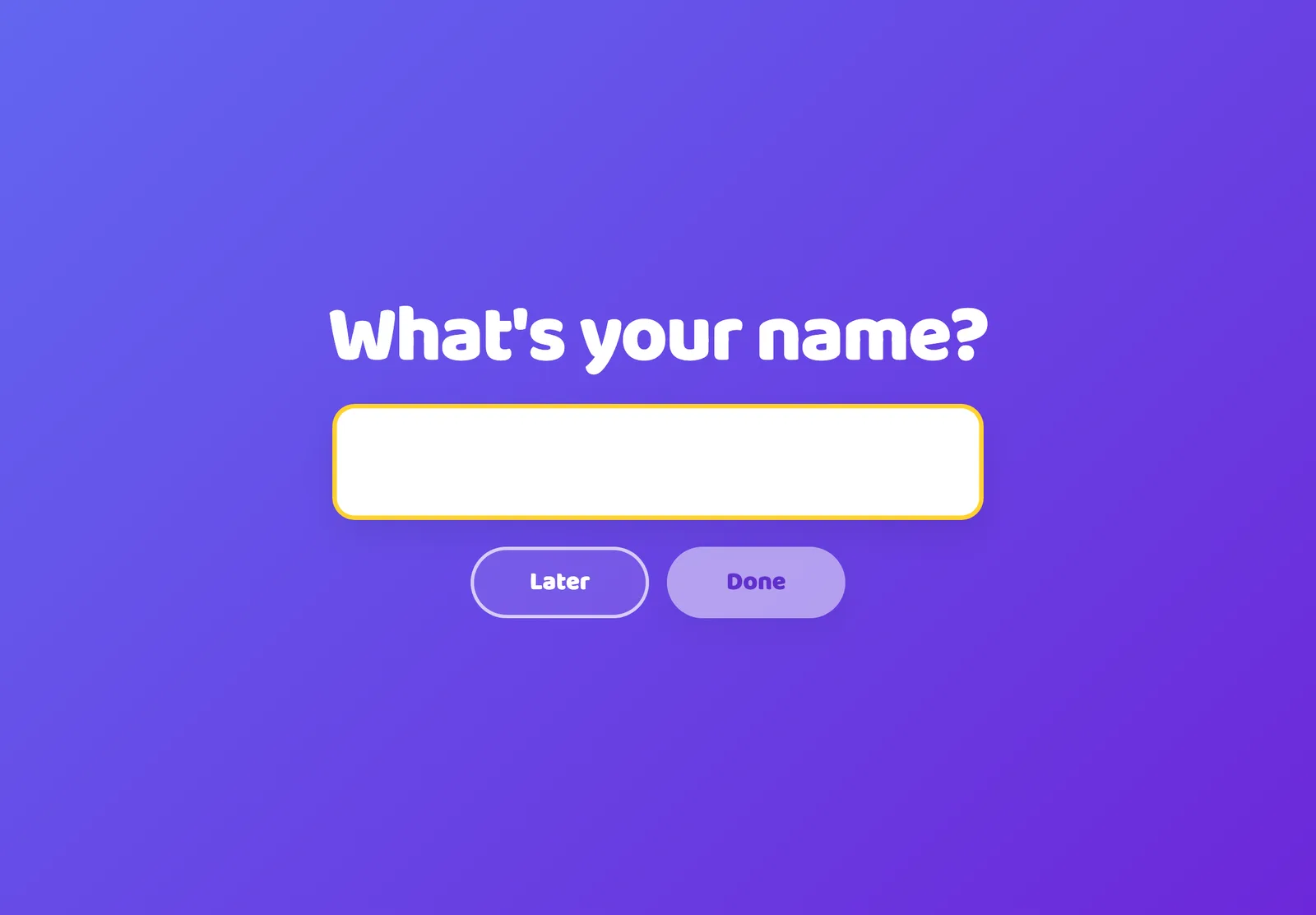
Students join with the code
They scan the QR code or type the six letters. No account, no password, no email.
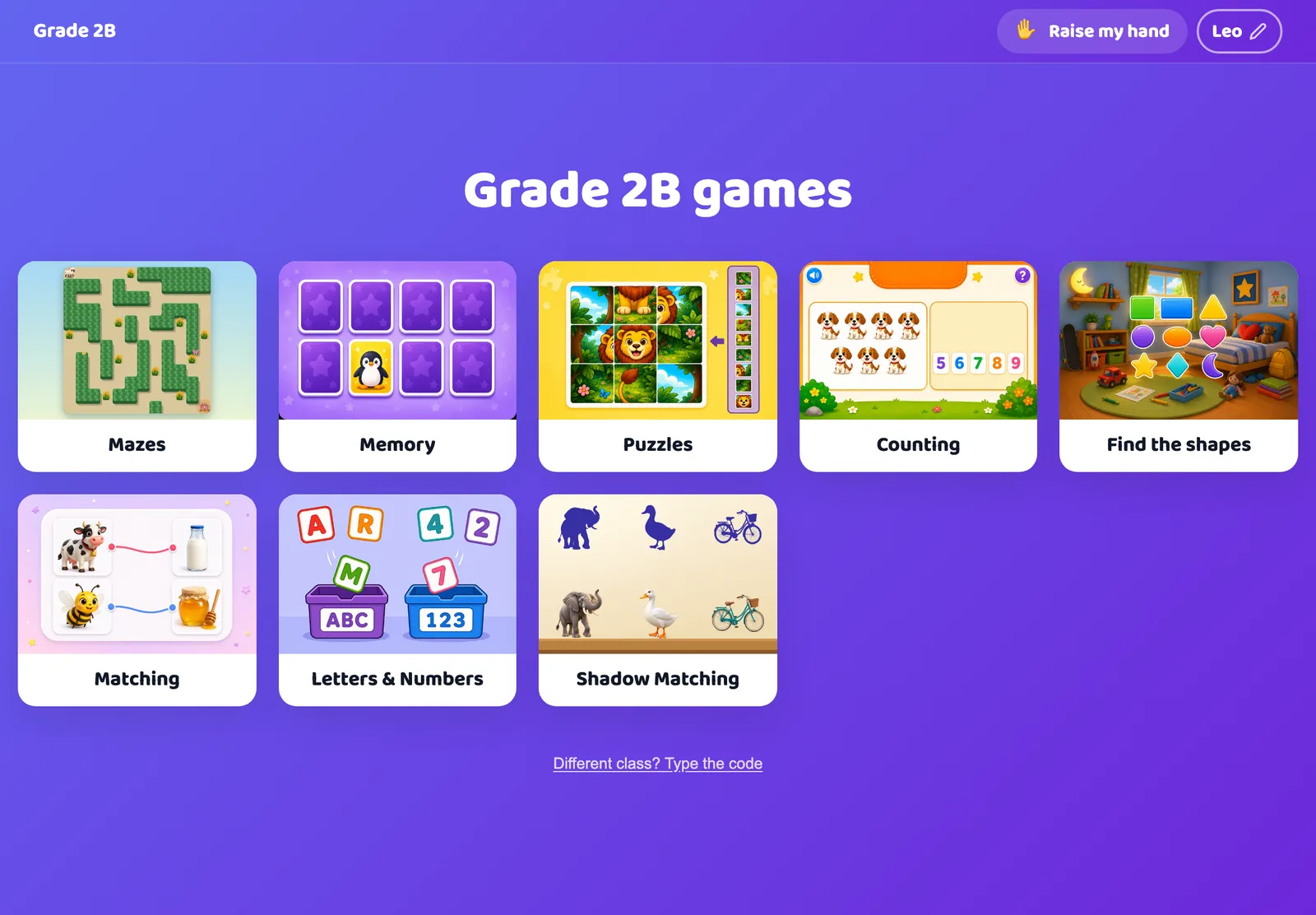
Pick the games and start class
Students only see the games you chose for today. When you tap “End class”, it’s saved.
What you can do from your screen
Everything you see here is the product exactly as it works today, with a test classroom.
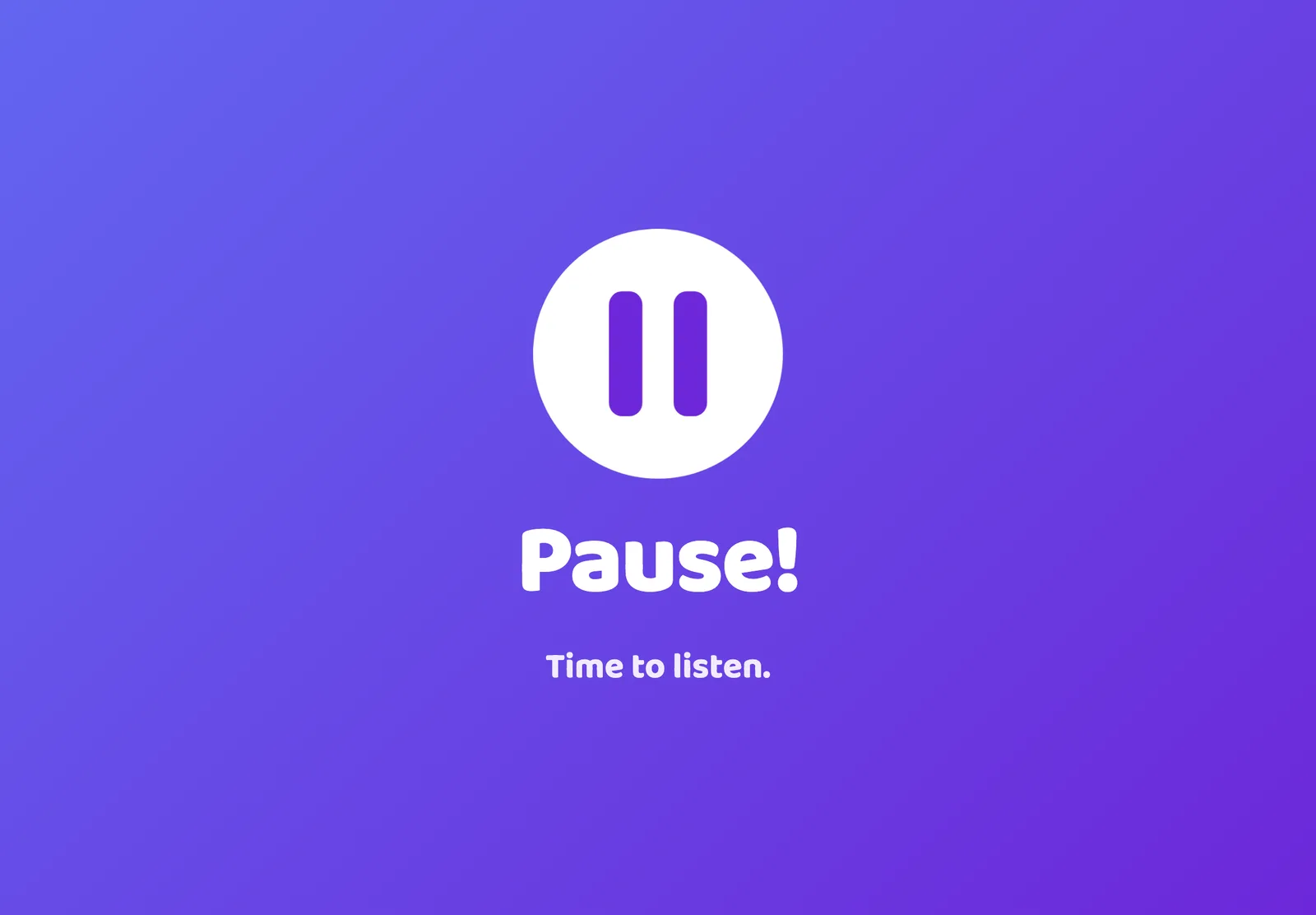
Pause every screen
One tap and every screen shows “Pause! Time to listen.” When you’re done explaining, you release them.
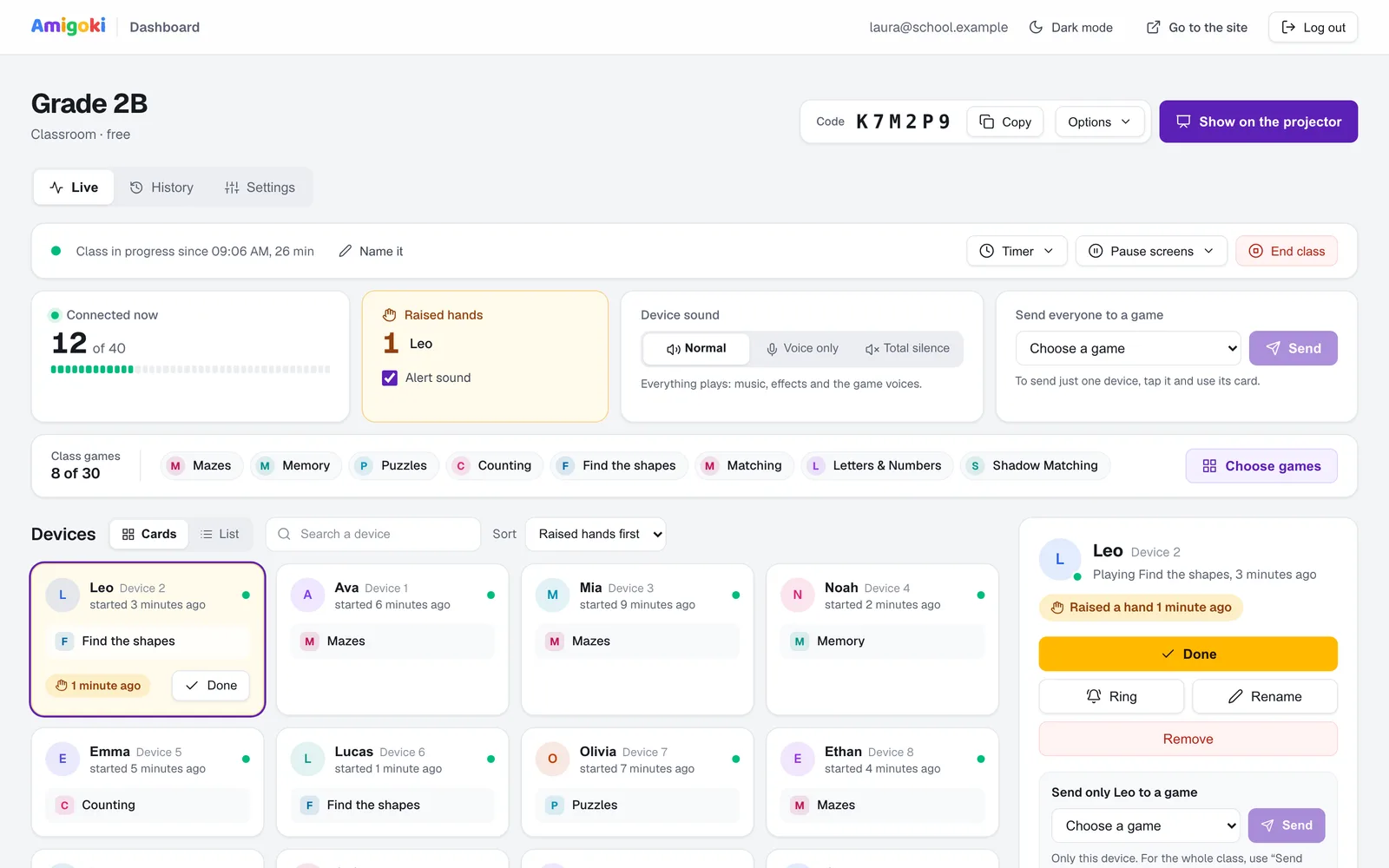
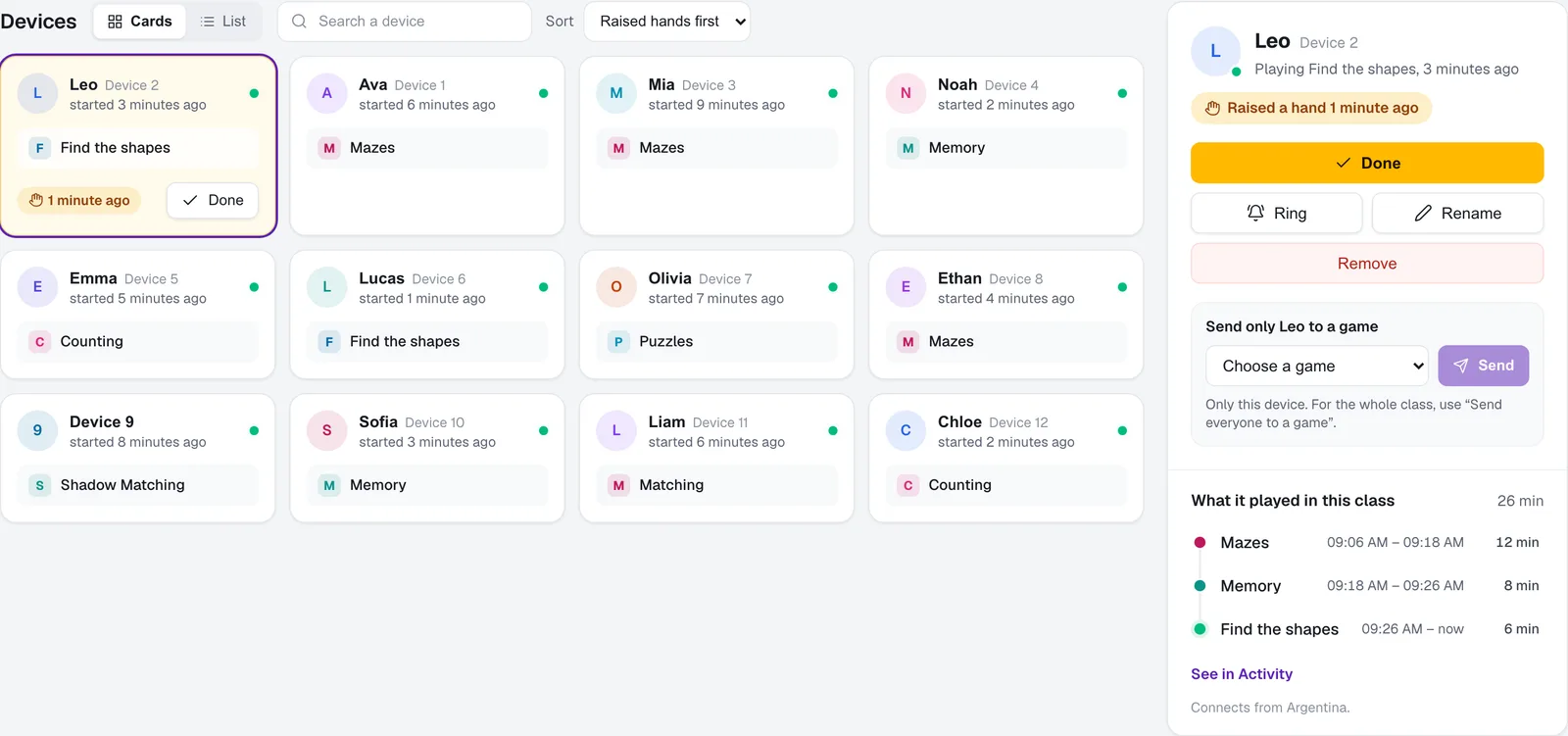
See what each student is doing, live
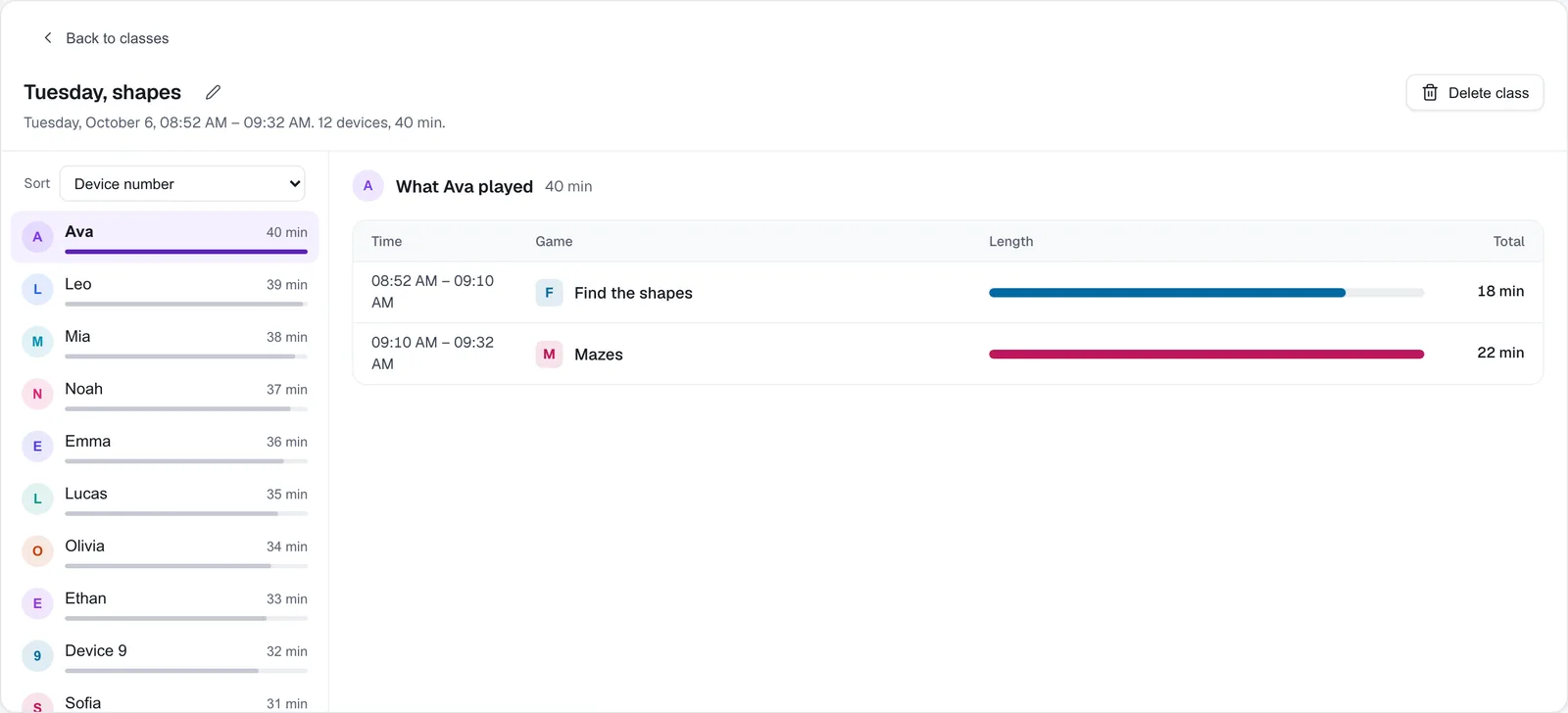
Each device with its name, the game it has open and for how long. Tap one to see everything it played during class.
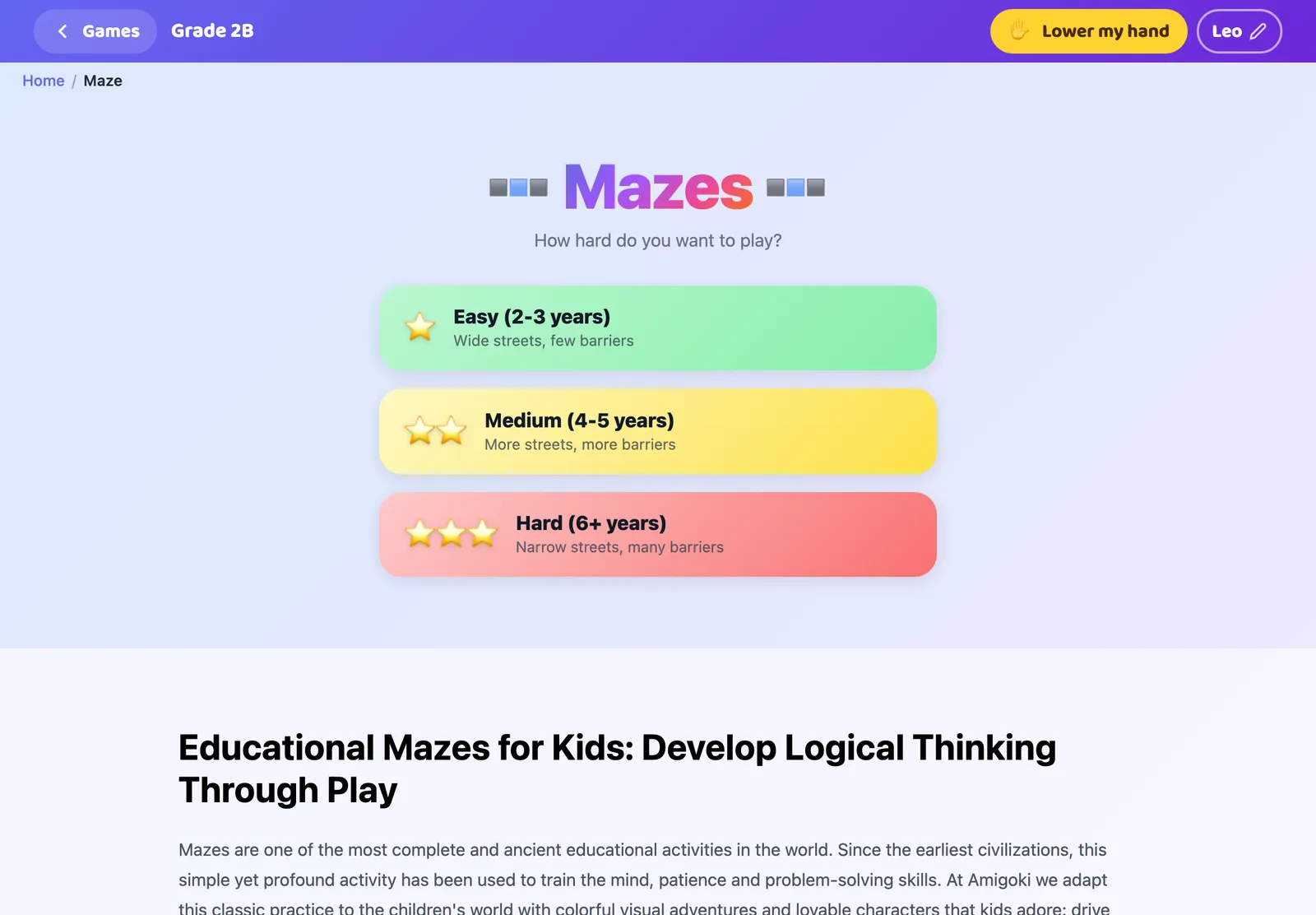
Raised hands
A student taps “Raise hand” on their screen. It shows up first on your dashboard, with a soft sound if you want.
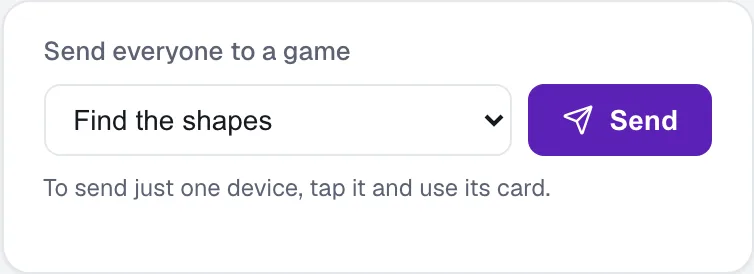
Send everyone to a game
Pick a game and it opens on every screen at once. No going desk by desk.
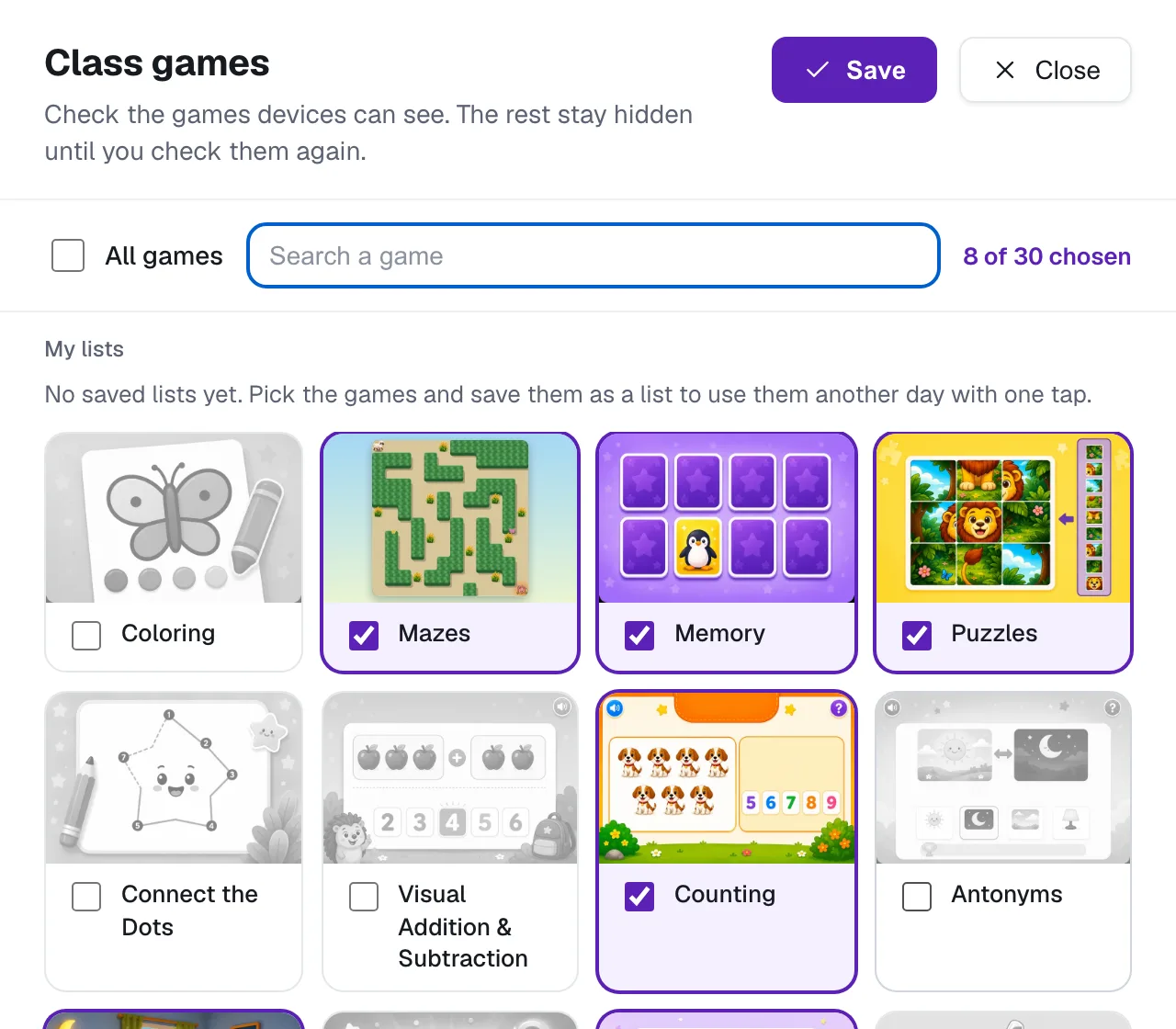
Choose today’s games
Out of all the games on the site, students only see the ones you checked. Tomorrow you can change them in a minute.
Every class is saved
Who played what and for how long. You can name it, like “Tuesday, shapes”.
Your students’ data
What’s stored, who sees it and when it’s deleted.
Students don’t have accounts
They join with the class code. We don’t ask them for an email, a password or any other information.
A first name, if you want
It’s the only personal information stored, so you know who is on each device. You can turn it off in Settings.
It deletes itself
Names are deleted after 12 months without use. Saved classes remain, as “Device 1”, “Device 2”.
It’s explained in detail in our privacy policy, under “Classroom use”.
Questions
What devices does it work on?
Any browser, for you and for your students: computers, Chromebooks, tablets, laptops, phones. Nobody installs anything.
How many students can join?
Up to 40 devices at a time in one classroom.
Do I need a projector?
No. If you have one, it’s handy for showing the code big so everyone can type it. If not, read it out loud, or copy it from your dashboard and share it in your class chat or Google Classroom.
What happens if the school internet drops?
Each screen stays in the game it had open. When the connection comes back, the dashboard catches up on its own.
What if my students can’t write yet?
Turn off “students type their name” in Settings and enter the names yourself from the dashboard, or leave them as “Device 3”.
What ages is it for?
Ages 2 to 8: preschool, pre-K, kindergarten and the first years of elementary school.
Can I use it to play a game on the interactive whiteboard?
You don’t need to create a classroom for that: most Amigoki games open in the whiteboard’s browser, with nothing to install, and the whole class can play together. Classroom mode is for when each student has their own screen.
Create your classroom today, try it tomorrow
Create my classroomFree. No credit card required.
Already have a classroom? Sign in